Introduction

Prisma and Zabbix Direct provide comprehensive solutions for monitoring and managing Zabbix servers. Both are accessible through the IntelliTrend Mobile app, with Prisma additionally offering a web frontend for use in a browser. Prisma extends Zabbix with enterprise-grade features like a powerful reporting engine, Self Provisioning and anomaly detection with Prisma AI.

Zabbix Direct, which is available exclusively through IntelliTrend Mobile, enables direct access to your Zabbix server from mobile devices. This solution is ideal for individual users or smaller organizations with single-server monitoring needs.

Prisma is a more comprehensive server solution, primarily designed for larger organizations with complex monitoring requirements. It enhances Zabbix with enterprise-grade features while incorporating all Zabbix Direct functionality. Accessible via both the IntelliTrend Mobile app and web browsers, it supports connecting to multiple Zabbix servers simultaneously.

IntelliTrend Mobile for Zabbix
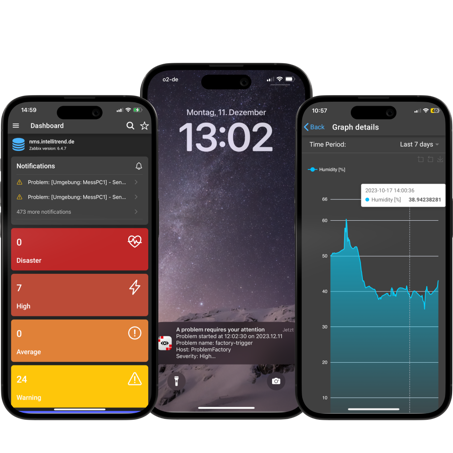
IntelliTrend Mobile provides a smooth mobile experience for monitoring your Zabbix servers, allowing continuous awareness of your monitoring environment and rapid response capabilities.

If you haven’t installed the app yet, you can download it from the following stores:

The app operates in two distinct modes: Zabbix Direct and Prisma. This choice between modes is only available when using the app, as Zabbix Direct is IntelliTrend Mobile for Zabbix exclusive, as well as our unique push notification service. The differences between both modes are explained in their respective chapters: Zabbix Direct and Prisma. For a quick comparison between the two modes, refer to the table provided in this chapter.

Zabbix Direct

Zabbix Direct is designed for individual users seeking to monitor their Zabbix server and receive push notifications for specific events. It communicates directly with a Zabbix server’s frontend using the Zabbix API over HTTP/HTTPS, and is accessible exclusively through the IntelliTrend Mobile app for Zabbix.


IntelliTrend Mobile for Zabbix Zabbix frontend

The solution features a comprehensive dashboard and dedicated sections for monitoring issues, configured triggers, host groups, hosts, items, graphs, and services. In addition to displaying Zabbix-generated graphs, Zabbix Direct creates custom visualizations and lists for both numeric and text items. This functionality parallels that of Prisma’s Zabbix Client.

The app can be downloaded for free and offers a free trial period for Zabbix Direct. Past the trial period, a subscription is required.

Prisma

Expanding upon the capabilities of Zabbix Direct, Prisma offers advanced functionality like reporting capabilities, Self Provisioning features and anomaly detection with Prisma AI. It includes role-based access control and allows management of multiple different Zabbix servers.

The mobile app and the Prisma web frontend communicate with the Prisma Server via HTTP/HTTPS. The Prisma Server in turn communicates with the respective Zabbix frontend using the Zabbix-API over HTTP/HTTPS.


Prisma Server Prisma Server Prisma Server

Prisma is designed to be horizontally scalable, enabling efficient management of multiple Zabbix servers and complex organizational structures. It offers comprehensive visualization of organizational hierarchies with a robust role-based authorization system for effective user management. The solution is accessed easily through an intuitive user portal and mobile application. This makes Prisma particularly well-suited for system integrators, MSPs, MaaS providers, and large corporations operating multiple independent Zabbix servers.

While Prisma doesn’t require a subscription, a valid Prisma account is necessary for usage. This account can be used with the IntelliTrend Mobile app and also the web based Prisma user portal.

Self Provisioning

Prisma Self Provisioning is defined by two key features: Maintenances and Alerts.

Maintenance: Allows to put single hosts or entire host groups into maintenance directly via the app. Hosts and host groups in maintenance mode can further be configured to continue collecting data, or to suspend data collection during the maintenances.

Alerts: Provides options to enable or disable alerts for specific host groups in response to configurable severity levels of problems. These alerts utilize the media types configured on the Zabbix server. Notably, users can opt to receive push notifications on their mobile devices through IntelliTrend Mobile.

AI

Prisma AI enables training and using artificial intelligence models for anomaly detection. These models are trained on multivariate time series data from item histories of a Zabbix server. Datasets can be extracted from a Zabbix server’s history and AI models trained to be tailored to the hosts that training-data was derived from. IntelliTrend’s AI Server is able to process new values from Zabbix servers in real time, executing models as soon as the data arrives and sending metrics about loss back to Zabbix. The received data can further be processed using regular actions and triggers to alert users about detected anomalies. In combination with the push notification service, users can be alerted about these anomalies directly on their mobile device.

Reporting

Another distinctive feature of Prisma is the capability to configure, generate, and receive reports. Reports are created by utilizing widgets to visualize various data from a Zabbix server. Reports generation and dispatch can be scheduled to automatically occur at regular intervals. For users to receive reports, a subscription to the desired reports is required and the format in which reports are generated can be selected. Available options include PDF, JSON, XML, and CSV.

Comparison table

  -   Available in app      

  -   Available in browser      

Zabbix DirectPrisma
Receive push notifications
		<i class="fa-solid fa-mobile-screen-button"></i> 
		 
	</td><td style="text-align: center">
		
		<i class="fa-solid fa-mobile-screen-button"></i> 
		 
	</td></tr><tr>
	<td>Manage dashboards</td><td style="text-align: center">
		
		<i class="fa-solid fa-mobile-screen-button"></i> 
		 
	</td><td style="text-align: center">
		
		<i class="fa-solid fa-mobile-screen-button"></i> 
		 <span>/</span>
		<i class="fa-solid fa-desktop"></i>  
	</td></tr><tr>
	<td>Configure dashboards</td><td style="text-align: center">
		
		<i class="fa-solid fa-mobile-screen-button"></i> 
		 
	</td><td style="text-align: center">
		
		<i class="fa-solid fa-mobile-screen-button"></i> 
		 <span>/</span>
		<i class="fa-solid fa-desktop"></i>  
	</td></tr><tr>
	<td>Inspect Open Problems</td><td style="text-align: center">
		
		<i class="fa-solid fa-mobile-screen-button"></i> 
		 
	</td><td style="text-align: center">
		
		<i class="fa-solid fa-mobile-screen-button"></i> 
		 <span>/</span>
		<i class="fa-solid fa-desktop"></i>  
	</td></tr><tr>
	<td>Inspect Closed Problems</td><td style="text-align: center">
		
		<i class="fa-solid fa-mobile-screen-button"></i> 
		 
	</td><td style="text-align: center">
		
		<i class="fa-solid fa-mobile-screen-button"></i> 
		 <span>/</span>
		<i class="fa-solid fa-desktop"></i>  
	</td></tr><tr>
	<td>Change acknowledgement of problems</td><td style="text-align: center">
		
		<i class="fa-solid fa-mobile-screen-button"></i> 
		 
	</td><td style="text-align: center">
		
		<i class="fa-solid fa-mobile-screen-button"></i> 
		 <span>/</span>
		<i class="fa-solid fa-desktop"></i>  
	</td></tr><tr>
	<td>Inspect configured triggers</td><td style="text-align: center">
		
		<i class="fa-solid fa-mobile-screen-button"></i> 
		 
	</td><td style="text-align: center">
		
		<i class="fa-solid fa-mobile-screen-button"></i> 
		 <span>/</span>
		<i class="fa-solid fa-desktop"></i>  
	</td></tr><tr>
	<td>Inspect host groups</td><td style="text-align: center">
		
		<i class="fa-solid fa-mobile-screen-button"></i> 
		 
	</td><td style="text-align: center">
		
		<i class="fa-solid fa-mobile-screen-button"></i> 
		 <span>/</span>
		<i class="fa-solid fa-desktop"></i>  
	</td></tr><tr>
	<td>Inspect hosts</td><td style="text-align: center">
		
		<i class="fa-solid fa-mobile-screen-button"></i> 
		 
	</td><td style="text-align: center">
		
		<i class="fa-solid fa-mobile-screen-button"></i> 
		 <span>/</span>
		<i class="fa-solid fa-desktop"></i>  
	</td></tr><tr>
	<td>Inspect configured items</td><td style="text-align: center">
		
		<i class="fa-solid fa-mobile-screen-button"></i> 
		 
	</td><td style="text-align: center">
		
		<i class="fa-solid fa-mobile-screen-button"></i> 
		 <span>/</span>
		<i class="fa-solid fa-desktop"></i>  
	</td></tr><tr>
	<td>Inspect Prisma item history graphs and tables</td><td style="text-align: center">
		
		<i class="fa-solid fa-mobile-screen-button"></i> 
		 
	</td><td style="text-align: center">
		
		<i class="fa-solid fa-mobile-screen-button"></i> 
		 <span>/</span>
		<i class="fa-solid fa-desktop"></i>  
	</td></tr><tr>
	<td>Inspect configured Zabbix graphs</td><td style="text-align: center">
		
		<i class="fa-solid fa-mobile-screen-button"></i> 
		 
	</td><td style="text-align: center">
		
		<i class="fa-solid fa-mobile-screen-button"></i> 
		 <span>/</span>
		<i class="fa-solid fa-desktop"></i>  
	</td></tr><tr>
	<td>Inspect services</td><td style="text-align: center">
		
		<i class="fa-solid fa-mobile-screen-button"></i> 
		 
	</td><td style="text-align: center">
		
		<i class="fa-solid fa-mobile-screen-button"></i> 
		 <span>/</span>
		<i class="fa-solid fa-desktop"></i>  
	</td></tr><tr>
	<td>Track service uptime</td><td style="text-align: center">
		
		<i class="fa-solid fa-mobile-screen-button"></i> 
		 
	</td><td style="text-align: center">
		
		<i class="fa-solid fa-mobile-screen-button"></i> 
		 <span>/</span>
		<i class="fa-solid fa-desktop"></i>  
	</td></tr><tr>
	<td>Inspect SLA details</td><td style="text-align: center">
		
		<i class="fa-solid fa-mobile-screen-button"></i> 
		 
	</td><td style="text-align: center">
		
		<i class="fa-solid fa-mobile-screen-button"></i> 
		 <span>/</span>
		<i class="fa-solid fa-desktop"></i>  
	</td></tr><tr>
	<td>Track SLA uptime</td><td style="text-align: center">
		
		<i class="fa-solid fa-mobile-screen-button"></i> 
		 
	</td><td style="text-align: center">
		
		<i class="fa-solid fa-mobile-screen-button"></i> 
		 <span>/</span>
		<i class="fa-solid fa-desktop"></i>  
	</td></tr><tr>
	<td>Configure favorites and filters for Zabbix Client</td><td style="text-align: center">
		
		<i class="fa-solid fa-mobile-screen-button"></i> 
		 
	</td><td style="text-align: center">
		
		<i class="fa-solid fa-mobile-screen-button"></i> 
		 <span>/</span>
		<i class="fa-solid fa-desktop"></i>  
	</td></tr><tr>
	<td>Configure maintenances for host groups</td><td style="text-align: center">
		 <span style="font-weight: bold">&ndash;</span>
		
	</td><td style="text-align: center">
		
		<i class="fa-solid fa-mobile-screen-button"></i> 
		 <span>/</span>
		<i class="fa-solid fa-desktop"></i>  
	</td></tr><tr>
	<td>Configure maintenances for hosts</td><td style="text-align: center">
		 <span style="font-weight: bold">&ndash;</span>
		
	</td><td style="text-align: center">
		
		<i class="fa-solid fa-mobile-screen-button"></i> 
		 <span>/</span>
		<i class="fa-solid fa-desktop"></i>  
	</td></tr><tr>
	<td>Configure alerts for host groups</td><td style="text-align: center">
		 <span style="font-weight: bold">&ndash;</span>
		
	</td><td style="text-align: center">
		
		<i class="fa-solid fa-mobile-screen-button"></i> 
		 <span>/</span>
		<i class="fa-solid fa-desktop"></i>  
	</td></tr><tr>
	<td>Create AI datasets based on your Zabbix data</td><td style="text-align: center">
		 <span style="font-weight: bold">&ndash;</span>
		
	</td><td style="text-align: center">
		
		<i class="fa-solid fa-mobile-screen-button"></i> 
		 <span>/</span>
		<i class="fa-solid fa-desktop"></i>  
	</td></tr><tr>
	<td>Create AI models for anomaly detection</td><td style="text-align: center">
		 <span style="font-weight: bold">&ndash;</span>
		
	</td><td style="text-align: center">
		
		<i class="fa-solid fa-mobile-screen-button"></i> 
		 <span>/</span>
		<i class="fa-solid fa-desktop"></i>  
	</td></tr><tr>
	<td>Receive calculated item data via your AI model</td><td style="text-align: center">
		 <span style="font-weight: bold">&ndash;</span>
		
	</td><td style="text-align: center">
		
		<i class="fa-solid fa-mobile-screen-button"></i> 
		 <span>/</span>
		<i class="fa-solid fa-desktop"></i>  
	</td></tr><tr>
	<td>Create and configure reports</td><td style="text-align: center">
		 <span style="font-weight: bold">&ndash;</span>
		
	</td><td style="text-align: center">
		
		<i class="fa-solid fa-mobile-screen-button"></i> 
		 <span>/</span>
		<i class="fa-solid fa-desktop"></i>  
	</td></tr><tr>
	<td>Receive reports on a schedule or download on demand</td><td style="text-align: center">
		 <span style="font-weight: bold">&ndash;</span>
		
	</td><td style="text-align: center">
		
		<i class="fa-solid fa-mobile-screen-button"></i> 
		 <span>/</span>
		<i class="fa-solid fa-desktop"></i>  
	</td></tr><tr>
	<td>View report jobs</td><td style="text-align: center">
		 <span style="font-weight: bold">&ndash;</span>
		
	</td><td style="text-align: center">
		
		<i class="fa-solid fa-mobile-screen-button"></i> 
		 <span>/</span>
		<i class="fa-solid fa-desktop"></i>  
	</td></tr><tr>
	<td>Monitor Prisma microservices</td><td style="text-align: center">
		 <span style="font-weight: bold">&ndash;</span>
		
	</td><td style="text-align: center">
		
		<i class="fa-solid fa-mobile-screen-button"></i> 
		 <span>/</span>
		<i class="fa-solid fa-desktop"></i>  
	</td></tr><tr>
	<td>View Prisma microservice netlog</td><td style="text-align: center">
		 <span style="font-weight: bold">&ndash;</span>
		
	</td><td style="text-align: center">
		
		<i class="fa-solid fa-mobile-screen-button"></i> 
		 <span>/</span>
		<i class="fa-solid fa-desktop"></i>  
	</td></tr><tr>
	<td>View auditlog</td><td style="text-align: center">
		 <span style="font-weight: bold">&ndash;</span>
		
	</td><td style="text-align: center">
		
		<i class="fa-solid fa-mobile-screen-button"></i> 
		 <span>/</span>
		<i class="fa-solid fa-desktop"></i>  
	</td></tr></table>

Where to begin?

There are multiple valid entry points, depending on the product and user type in question.

Users who have not yet completed setting up their Zabbix server in Prisma should refer to the Prisma manager manual to get started with Prisma.

Users who have finished setting up their Zabbix server in Prisma and/or simply want to get started with Prisma user features like Self Provisioning, Reporting or Prisma AI, can refer to the Prisma user manual.

For those who are looking to install an On-Premises Prisma instance, please refer to the Prisma Admin manual: Installation.

Additional details can be found in the table below:

Type Chapter Description
Zabbix Direct IntelliTrend Mobile for Zabbix: Zabbix Direct Documentation for Zabbix Direct users of the IntelliTrend Mobile app for Zabbix. Includes references to the Zabbix Client and documentation about push notifications
Prisma user Prisma User manual: Getting started Documentation for Prisma users. It includes documentation to all Prisma user features such as:

  • Zabbix Client
  • Self Provisioning
  • Prisma AI
Prisma manager Prisma Manager manual: Getting started Documentation for Prisma managers. It includes documentation about Prisma manager features such as:

  • Managing my own and sub-companies
  • Adding my Zabbix server to Prisma
  • Creating and configuring media types for report deliveries
  • Creating and configuring Prisma roles
  • Viewing and managing Prisma report subscriptions across your Zabbix servers
Prisma admin Prisma Admin manual Documentation for Prisma instance administrators, which covers the following topics:

  • Installation and configuration of a Prisma instance
  • Getting an overview of your Prisma instance health
  • Getting an overview of your Prisma services