Filters and favorites
Filters
Some pages are filterable by using their primary filters or advanced filters.
- Primary filters: Shown as filter chips. Represent the most relevant filters for a specific section.
- Search: Search through the list by entering a search term.
- Advanced filters: Section-specific advanced filters, accessed via the funnel.
- Favorites: Clicking the star opens the favorites menu.
Filters are persistent when accessing a page via the side menu. When revisiting a page, previously configured filters remain applied. Implicit filters, such as those triggered by clicking a dashboard card, are temporary. In this case, persistent filters can be overwritten. Any additional filters applied or removed in this view will not persist.
If an advanced filter is applied or a favorite is selected, it is also listed in the primary filter section. Clicking the cross of a filter removes it from the applied selection.
Primary filters
Primary filters are the most relevant filter options for a specific section. They are always displayed at the top of the page. Not every section has primary filters, but if they do, a detailed explanation of the options can be found in the corresponding section chapters.
Search
The search function can directly be used when entering the search field by tapping:
Enter a search term and the list updates to display entities that match or partially match the term.
Advanced filters
Advanced filters can be accessed by clicking the funnel icon in the section header. The available filter options are listed and explained in the corresponding chapters.
Layout modes
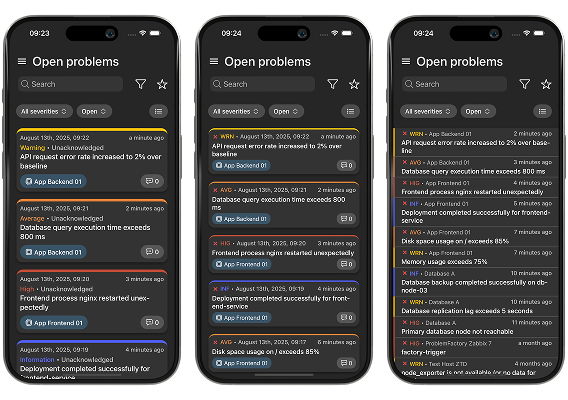
Every list page in Zabbix Direct and Prisma provides the option to change the way how list items are displayed. Users can choose between three layout modes to customize their views:
- Normal cards: Renders each list item as a card. This is the default view.
- Compact card: Renders each list item as a smaller card with details shown in a space-efficient layout.
- Compact list: Renders each list item as a plain list entry, maximizing information density and minimizing space usage.
Each page can have its own layout mode, with Normal cards set as the default. Users can change the default layout in the Settings page and optionally reset all pages to use it.
Favorites
Favorites are configurable host and host group filter presets. Active favorites are persistently applied on all pages which support them and can be both created and applied via Zabbix Client > Favorites.
On pages with favorite support, users can also click the star icon to manage favorites or use a shortcut to access the favorites page:
Creating favorites
To create a new favorite, click the blue plus and fill out the form:
- Name: Name of the favorite.
- Type: Choose between host or host group.
- Host/Host group: Depending on the chosen type. Search for specific hosts or host groups to add to the favorite. Multiple entries can be added.
Click Create to complete the creation process.
Editing favorites
To edit a favorite, click the configuration button on the favorite’s card. The same form opens, allowing changes to the name, type, and entities. If the type is changed from host to host group or vice versa, the selected entities are cleared. Click Save to apply the changes.
Deleting favorites
To delete a favorite, click the context menu on the favorite’s card and select Delete.