Install Prisma
This chapter will provide a reference docker compose file to use for deployment. All services of a Prisma deployment are deployed with docker compose by default.
Architecture diagram
Refer to this diagram for an overview of the general architecture of Prisma:
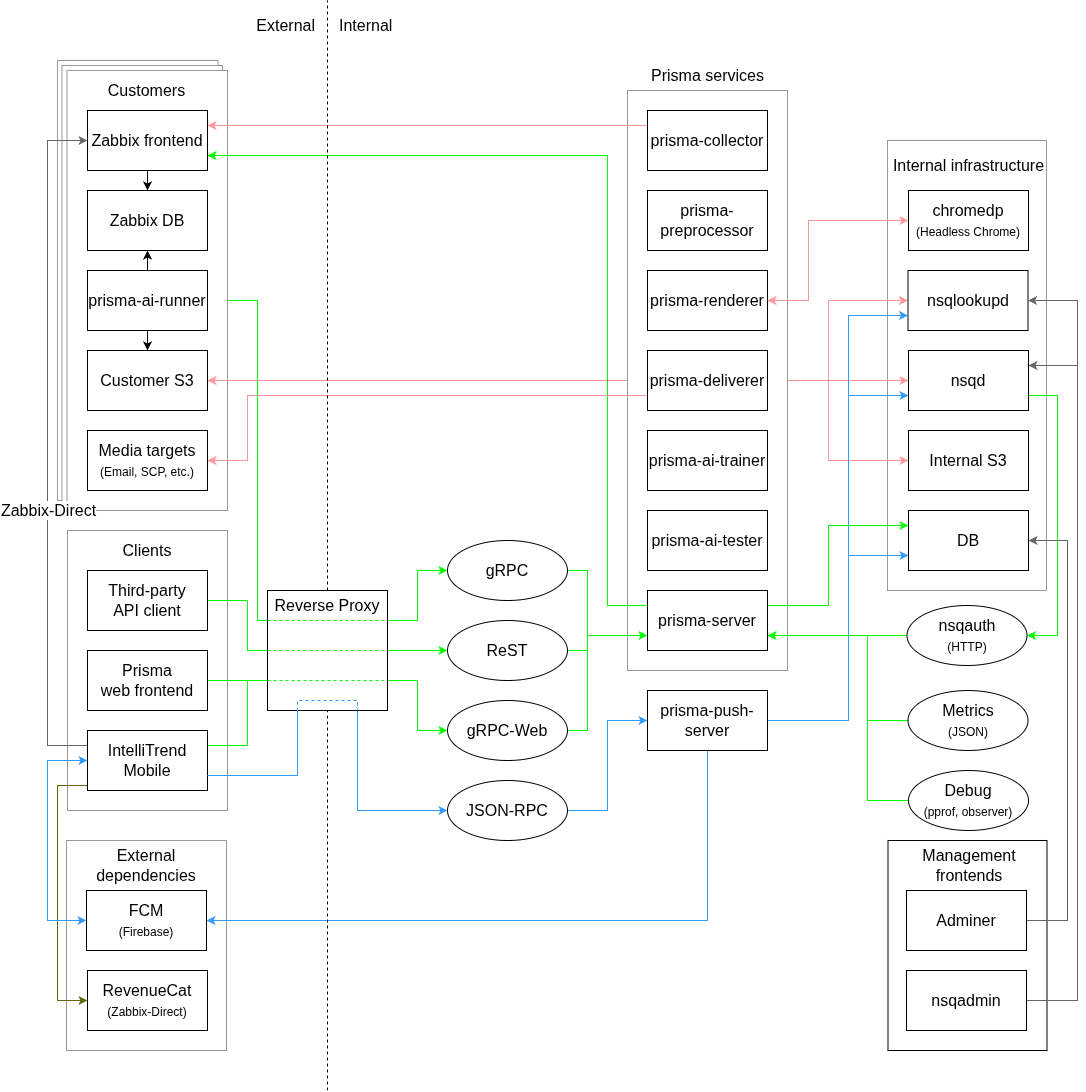
Service dependencies
Because a Prisma deployment consists of multiple services, there are some network dependencies between the services.
Most of these dependencies are already dealt with as part of the docker-compose setup, but please refer to this table if you would like to understand the relationships between the services (the source service always depends on the destination service).
| Source Service | Destination Services |
|---|---|
| prisma-frontend | prisma-server gRPC-Web API must be reachable from browsers using the prisma-frontend |
| prisma-server | postgres, nsqd, nsqlookupd, seaweedFS, Zabbix API |
| prisma-collector | nsqd, nsqlookupd, seaweedFS, Zabbix API |
| prisma-preprocessor | nsqd, nsqlookupd, seaweedFS |
| prisma-renderer | nsqd, nsqlookupd, seaweedFS, chromedp |
| prisma-deliverer | nsqd, nsqlookupd, seaweedFS, delivery targets |
| prisma-ai-trainer | nsqd, nsqlookupd, seaweedFS |
| prisma-ai-tester | nsqd, nsqlookupd, seaweedFS |
| prisma-ai-runner | prisma-server, seaweedFS |
| nsqd | nsqlookupd, prisma-server (nsqauth) |
| nsqlookupd | nsqd |
| chromedp | prisma-deliverer |
| postgres | – |
| seaweedFS | – |
Network requirements
A Prisma deployment needs to connect to various different network services. Following is an overview of requirements on the network to allow for communication between the various services.
Note that this does not include internal connections between Prisma services that are deployed together in a single docker-compose environment by default. Instead, this overview is intended as a hint about potentially necessary firewall rules.
Network connection requirements for the client
| Outgoing connections | ||||
|---|---|---|---|---|
| Source | Port | Destination | Purpose | |
| Web browser / IntelliTrend Mobile for Zabbix app | 80/tcp or 443/tcp | prisma-frontend reverse proxy | Access to static frontend files and the gRPC-Web Prisma Server API | |
| IntelliTrend Mobile for Zabbix app | 443/tcp | push.intellitrend.de | Configuration of push notifications. (Only required when using Push notifications) | |
Network connection requirements for the server
| Incoming connections | ||||
|---|---|---|---|---|
| Destination | Port | Source | Purpose | |
| prisma-frontend reverse proxy | 443/tcp or 80/tcp | Clients (Web browser / IntelliTrend Mobile for Zabbix app) | Providing access to the prisma-frontend and the gRPC-Web Prisma Server API | |
| prisma-server | 8090/tcp, 8091/tcp, 8092/tcp | prisma-frontend reverse proxy (gRPC-Web), Clients (gRPC-REST) | Providing access to the gRPC native, gRPC-Web and gRPC-REST API | |
| Outgoing connections | ||||
| Source | Port | Destination | Purpose | |
| prisma-server, prisma-collector | 443/tcp | Your configured Zabbix frontend servers | Access to Zabbix API of configured servers | |
| prisma-deliverer | Various | Configured delivery targets | Delivery of reports to configured destinations | |
Deploying Prisma using Docker Compose
1. Prerequisites
To set up a new Prisma instance, a number of prerequisites have to be met.
Please carefully read and verify these, so you don’t run into any problems during the installation.
1.1 Preparing the host system
To set up a Prisma Server, you will need a Linux machine with Docker and Docker Compose installed.
You can check whether they are installed by running the following commands:
docker version
docker compose version
1.2 Network considerations
Your server will need to have access to our license servers (reachable at license1.intellitrend.de and license2.intellitrend.de).
Additionally, the server needs to be reachable via HTTP/HTTPS (by default on ports 80/443, but this can be changed). Alternatively, you can use an external reverse proxy to terminate TLS and forward the connection to the Prisma frontend internally.
1.3 Obtaining the necessary credentials
Once you have purchased a Prisma license, we will send you a license key (a file ending in .key) for your Prisma instance.
This key will authenticate your Prisma Server to our license server and enable all features included in your subscription.
You will need the license key during the installation process. Please do not share it with anybody.
Additionally, you will need the following:
- A valid TLS server certificate, if you want to serve Prisma with TLS (Alternatively, you can terminate TLS using an external, already existing reverse proxy)
- Credentials for an email server you want to use with your Prisma Server
2. Setting up the environment
Download the Prisma deployment package and extract it to a directory on your server (We recommend the name “prisma”).
Download deployment packageRename the included template.env file to .env, which contains the most important configuration parameters. (Navigate into the directory using cd prisma and rename the file using mv template.env .env.)
Edit this file with an editor of your choice (for example nano or vim) and replace YOUR_PRISMA_VERSION at the top of the file with the version of Prisma that you want to install.
The FRONTEND_URL in the .env file should be replaced by the URL the frontend will later be accessed at.
It should contain the URL scheme (http:// or https://) and the hostname (with a port, if the default ports 80/443 are not used).
It should not contain a path or a trailing slash.
The .env file also contains placeholders ([REPLACE_ME]) that should be replaced by random secrets.
For your convenience, we provide a gen_passwords.sh file which will automatically generate new secrets for your Prisma installation.
Simply run the command bash ./gen_passwords.sh to generate random secrets.
Take note of the newly generated DEFAULT_ACCOUNT_PASSWORD in the .env file, as you will need it for your first login to your Prisma Server.
DF_SERVER_NSQSECRET must not be the same as DF_COLLECTOR_NSQSECRET).
Secrets and some key configuration options are managed using a .env file.
# Set your Prisma version in the line below (For example 7.12.14)
PRISMA_VERSION=YOUR_PRISMA_VERSION
# The docker registry the Prisma images are pulled from
PRISMA_DOCKER_REGISTRY_PATH=images.intellitrend.de/prisma

# The timezone of your Prisma server
TIMEZONE=Europe/Berlin

# The URL at which your frontend will be reachable at by users
FRONTEND_URL=[REPLACE_ME]

# The database (root) credentials
DB_DATABASE=prisma
DB_USERNAME=prisma
DB_PASSWORD=[REPLACE_ME]

# The master key used to encrypt database values and sign sessions
MASTER_KEY=[REPLACE_ME]

# The SMTP credentials to use for sending emails
SMTP_HOST=[REPLACE_ME]
SMTP_PORT=465
SMTP_USERNAME=[REPLACE_ME]
SMTP_PASSWORD=[REPLACE_ME]
# One of: none, starttls-mandatory, starttls-opportunistic, tls-explicit (default)
SMTP_TLS_MODE=tls-explicit
# One of: none, PLAIN (default), LOGIN, CRAM-MD5
SMTP_AUTH_MECH=PLAIN
# The sender email address for emails sent by the Prisma server
SMTP_FROM_ADDRESS=[REPLACE_ME]

# The master key for the internal S3 server
S3_MASTER_KEY=[REPLACE_ME]

# The credentials of the Prisma default account (admin@prisma.loc)
DEFAULT_ACCOUNT_ENABLED=true
DEFAULT_ACCOUNT_PASSWORD=[REPLACE_ME]

# Secrets for authentication on the NSQ message queue
PRISMA_SERVER_NSQSECRET=[REPLACE_ME]
PRISMA_COLLECTOR_NSQSECRET=[REPLACE_ME]
PRISMA_PREPROCESSOR_NSQSECRET=[REPLACE_ME]
PRISMA_RENDERER_NSQSECRET=[REPLACE_ME]
PRISMA_DELIVERER_NSQSECRET=[REPLACE_ME]
PRISMA_AI_TESTER_NSQSECRET=[REPLACE_ME]
PRISMA_AI_TRAINER_NSQSECRET=[REPLACE_ME]
3. Installing your license key file
Copy your Prisma license key (from step 1) into the same directory as your docker-compose.yaml and rename it to prisma.key.
Your Prisma Server will use this file to communicate with one of our redundant license servers and activate the modules in your subscription. For this reason, the Prisma Server will need to be able to reach our license servers.
4. Review the docker-compose.yaml file
The included docker-compose.yaml file defines how the services will start.
If you have any problems setting up the Prisma Server, you may need to modify this file to match your system configuration.
You can consult the official docker-compose file reference or contact our support for further assistance.
The following is the content of the included docker compose file (docker-compose.yaml).
This docker compose file is used to deploy all services including the Prisma Server.
services:
  # ------------  Prisma Frontend  ------------
  prisma-frontend:
    container_name: prisma-frontend
    image: ${PRISMA_DOCKER_REGISTRY_PATH}/prisma-frontend:${PRISMA_VERSION}
    restart: always
    logging:
      driver: "json-file"
      options:
        max-size: "10m"
        max-file: "5"
    ports:
      - 80:80
      # Uncomment this line if you want to terminate TLS in this container.
      #- 443:443
    volumes:
      - ./prisma-frontend/data/cfg/prisma-base.conf:/etc/nginx/conf.d/prisma-base.conf

      # Uncomment this line if TLS is terminated on an external proxy
      #- ./prisma-frontend/data/cfg/prisma-http.conf:/etc/nginx/conf.d/default.conf

      # Uncomment these lines if you want to terminate TLS in this container.
      # You will need to install your TLS certificates in the directory below.
      #- ./prisma-frontend/data/cfg/prisma-https.conf:/etc/nginx/conf.d/default.conf
      #- ./prisma-frontend/data/ssl/:/etc/nginx/ssl/

  # ------------  Prisma Server  ------------
  prisma-server:
    image: ${PRISMA_DOCKER_REGISTRY_PATH}/prisma-server:${PRISMA_VERSION}
    restart: always
    logging:
      driver: "json-file"
      options:
        max-size: "10m"
        max-file: "5"
    command: ./df-server
    depends_on:
      postgres:
        condition: service_healthy
      s3:
        condition: service_healthy
      nsqd:
        condition: service_started
    environment:
      # API Server Configuration
      DF_SERVER_LOG_LEVEL: "info"
      DF_SERVER_SERVER_GRPC_PORT: "8090"
      DF_SERVER_SERVER_GRPC_WEB_PORT: "8091"
      DF_SERVER_SERVER_REST_PORT: "8092"
      DF_SERVER_SERVER_FRONTEND_URL: $FRONTEND_URL
      DF_SERVER_SERVER_CORS_ALLOWED_ORIGINS: "$FRONTEND_URL http://localhost capacitor://localhost"
      DF_SERVER_SERVER_SLOW_QUERY_THRESHOLD: "1500"
      DF_SERVER_SERVER_THREAD_GUARD_ENABLE: "true"
      DF_SERVER_SESSIONS_EXPIRY: 3600
      # Initialization
      DF_SERVER_INIT_DEFAULT_ACCOUNT_ENABLED: $DEFAULT_ACCOUNT_ENABLED
      DF_SERVER_INIT_DEFAULT_ACCOUNT_PASSWORD: $DEFAULT_ACCOUNT_PASSWORD
      # Encryption
      DF_SERVER_CRYPTO_MASTER_KEY: $MASTER_KEY
      # User Sync
      DF_SERVER_USERSYNC_SYNC_ON_START: true
      DF_SERVER_USERSYNC_SCHEDULE: "0 3 * * *" # we will sync with all zabbix servers, every day at 03:00
      # User Cache
      DF_SERVER_CACHING_EVICTION_TIME: 3600 # users get evicted after one hour of inactivity
      DF_SERVER_CACHING_HOUSEKEEPER_SCHEDULER: "*/15 * * * *" # run housekeeper every 15min
      # HA
      DF_SERVER_HA_ENABLE: "false"
      DF_SERVER_HA_LEADER_LEASE_LENGTH: 60
      DF_SERVER_HA_LEADER_INITIAL_LEASE_LENGTH: 150
      DF_SERVER_HA_LONG_POLL_INTERVALL: 30
      DF_SERVER_HA_SHORT_POLL_INTERVALL: 15
      # NSQ
      DF_SERVER_NSQRPC_CONTROL_MESSAGE_TIMEOUT: 600 # 10 minutes maximum transactions between services
      DF_SERVER_NSQ_SERVICE_IDENTITY: "prisma_server"
      # NSQ connection
      DF_SERVER_NSQ_CONSUME_PORT: "4161"
      DF_SERVER_NSQ_CONSUME_ADDRESS: "nsqlookupd"
      DF_SERVER_NSQ_PRODUCE_PORT: "4150"
      DF_SERVER_NSQ_PRODUCE_ADDRESS: "nsqd"
      # NSQ TLS
      DF_SERVER_NSQ_TLS_ENABLE: "false"
      DF_SERVER_NSQ_TLS_CA_CERTIFICATE: "/usr/local/intellitrend/prisma/ssl/ca.cert"
      DF_SERVER_NSQ_TLS_SKIP_CERTIFICATE_VALIDATION: "true"
      # NSQ Authentication
      DF_SERVER_NSQAUTH_ENABLE: "true"
      DF_SERVER_NSQAUTH_PORT: "4180"
      DF_SERVER_NSQ_AUTH_SECRET: $PRISMA_SERVER_NSQSECRET
      DF_SERVER_NSQAUTH_SERVER_SECRET: $PRISMA_SERVER_NSQSECRET
      DF_SERVER_NSQAUTH_COLLECTOR_SECRET: $PRISMA_COLLECTOR_NSQSECRET
      DF_SERVER_NSQAUTH_PREPROCESSOR_SECRET: $PRISMA_PREPROCESSOR_NSQSECRET
      DF_SERVER_NSQAUTH_RENDERER_SECRET: $PRISMA_RENDERER_NSQSECRET
      DF_SERVER_NSQAUTH_DELIVERER_SECRET: $PRISMA_DELIVERER_NSQSECRET
      DF_SERVER_NSQAUTH_AI_TESTER_SECRET: $PRISMA_AI_TESTER_NSQSECRET
      DF_SERVER_NSQAUTH_AI_TRAINER_SECRET: $PRISMA_AI_TRAINER_NSQSECRET
      # Licensing
      DF_SERVER_LICENSE_PATH: "/usr/local/intellitrend/prisma/etc/prisma.key"
      # Zabbix
      DF_SERVER_ZABBIX_TRACE_ENABLE: "false"
      # TLS
      DF_SERVER_SERVER_GRPC_WEB_TLS_ENABLE: "false"
      DF_SERVER_SERVER_TLS_CERTIFICATE_PATH: "/usr/local/intellitrend/prisma/ssl/prisma-server.cert"
      DF_SERVER_SERVER_TLS_PRIVATE_KEY_PATH: "/usr/local/intellitrend/prisma/ssl/prisma-server.key"
      # Database
      DF_SERVER_DB_PORT: 5432
      DF_SERVER_DB_NAME: $DB_DATABASE
      DF_SERVER_DB_ADDRESS: postgres
      DF_SERVER_DB_USER: $DB_USERNAME
      DF_SERVER_DB_PASSWORD: $DB_PASSWORD
      DF_SERVER_DB_DRIVER: "postgres"
      DF_SERVER_DB_TRACE_ENABLE: "false"
      DF_SERVER_DB_RECONNECT_DELAY: 15
      # S3
      DF_SERVER_S3_MASTER_ADDRESS: s3
      DF_SERVER_S3_MASTER_KEY: $S3_MASTER_KEY
      DF_SERVER_S3_MASTER_PORT: 9333
      DF_SERVER_S3_STORAGE_URL: "s3:8333"
      DF_SERVER_S3_SYNC_INTERVAL: 300
      DF_SERVER_S3_TRACE_ENABLE: false
      # SMTP
      DF_SERVER_MAILER_SMTP_HOST: $SMTP_HOST
      DF_SERVER_MAILER_SMTP_PORT: $SMTP_PORT
      DF_SERVER_MAILER_SMTP_USERNAME: $SMTP_USERNAME
      DF_SERVER_MAILER_SMTP_PASSWORD: $SMTP_PASSWORD
      DF_SERVER_MAILER_SMTP_TLS_MODE: $SMTP_TLS_MODE
      DF_SERVER_MAILER_SMTP_AUTH_MECH: $SMTP_AUTH_MECH
      DF_SERVER_MAILER_SMTP_USER_AGENT: "prisma-server"
      DF_SERVER_MAILER_SMTP_HELO_NAME: "" # if left empty, will use hostname by default
      DF_SERVER_MAILER_FROM_ADDRESS: $SMTP_FROM_ADDRESS
      # LDAP
      DF_SERVER_LDAPAUTH_ADDRESS: ""
      DF_SERVER_LDAPAUTH_PORT: 389
      DF_SERVER_LDAPAUTH_DOMAIN: ""
      DF_SERVER_LDAPAUTH_TLS_ENABLE: "false"
      DF_SERVER_LDAPAUTH_TLS_CA_CERTIFICATE: ""
      DF_SERVER_LDAPAUTH_TLS_SKIP_CERTIFICATE_VALIDATION: "false"
      # Metrics
      DF_SERVER_METRICS_PORT: "8094"
      DF_SERVER_METRICS_IDENTITY: "prisma-server"
      DF_SERVER_METRICS_HISTORY_SIZE: 1000
      DF_SERVER_METRICS_STATE_FILE: "/usr/local/intellitrend/prisma/var/metrics/state.json"
    ports:
      #  - 4180:4180 # NSQ-Auth
      - 8090:8090 # gRPC
      - 8091:8091 # gRPC-Web (exposed publically through prisma-frontend reverse proxy)
    #  - 8092:8092 # REST
    #  - 8094:8094 # Metrics
    volumes:
      # Place your license key here
      - ./prisma.key:/usr/local/intellitrend/prisma/etc/prisma.key:ro
      # A directory used to persist metrics between restarts
      - ./prisma-server/data/metrics/:/usr/local/intellitrend/prisma/var/metrics:rw

  # ------------  Prisma Collector  ------------
  prisma-collector:
    image: ${PRISMA_DOCKER_REGISTRY_PATH}/prisma-collector:${PRISMA_VERSION}
    restart: always
    logging:
      driver: "json-file"
      options:
        max-size: "10m"
        max-file: "5"
    environment:
      DF_COLLECTOR_LOG_LEVEL: "info"
      DF_COLLECTOR_NSQ_SERVICE_IDENTITY: "prisma_collector"
      DF_COLLECTOR_NSQ_AUTH_ENABLE: "true"
      DF_COLLECTOR_NSQ_AUTH_SECRET: $PRISMA_COLLECTOR_NSQSECRET
      DF_COLLECTOR_NSQ_CONSUME_PORT: "4161"
      DF_COLLECTOR_NSQ_CONSUME_ADDRESS: "nsqlookupd"
      DF_COLLECTOR_NSQ_PRODUCE_PORT: "4150"
      DF_COLLECTOR_NSQ_PRODUCE_ADDRESS: "nsqd"
      DF_COLLECTOR_METRICS_IDENTITY: "prisma-collector"
    depends_on:
      prisma-server:
        condition: service_started
      nsqd:
        condition: service_started

  # ------------  Prisma Preprocessor  ------------
  prisma-preprocessor:
    image: ${PRISMA_DOCKER_REGISTRY_PATH}/prisma-preprocessor:${PRISMA_VERSION}
    restart: always
    logging:
      driver: "json-file"
      options:
        max-size: "10m"
        max-file: "5"
    environment:
      DF_PREPROCESSOR_LOG_LEVEL: "info"
      DF_PREPROCESSOR_NSQ_SERVICE_IDENTITY: "prisma_preprocessor"
      DF_PREPROCESSOR_NSQ_AUTH_ENABLE: "true"
      DF_PREPROCESSOR_NSQ_AUTH_SECRET: $PRISMA_PREPROCESSOR_NSQSECRET
      DF_PREPROCESSOR_NSQ_CONSUME_PORT: "4161"
      DF_PREPROCESSOR_NSQ_CONSUME_ADDRESS: "nsqlookupd"
      DF_PREPROCESSOR_NSQ_PRODUCE_PORT: "4150"
      DF_PREPROCESSOR_NSQ_PRODUCE_ADDRESS: "nsqd"
      DF_PREPROCESSOR_METRICS_IDENTITY: "prisma-preprocessor"
    depends_on:
      prisma-server:
        condition: service_started
      nsqd:
        condition: service_started

  # ------------  Prisma Deliverer  ------------
  prisma-deliverer:
    image: ${PRISMA_DOCKER_REGISTRY_PATH}/prisma-deliverer:${PRISMA_VERSION}
    restart: always
    logging:
      driver: "json-file"
      options:
        max-size: "10m"
        max-file: "5"
    environment:
      DF_DELIVERER_LOG_LEVEL: "trace"
      DF_DELIVERER_NSQ_SERVICE_IDENTITY: "prisma_deliverer"
      DF_DELIVERER_NSQ_CONSUME_PORT: "4161"
      DF_DELIVERER_NSQ_CONSUME_ADDRESS: "nsqlookupd"
      DF_DELIVERER_NSQ_PRODUCE_PORT: "4150"
      DF_DELIVERER_NSQ_PRODUCE_ADDRESS: "nsqd"
      DF_DELIVERER_NSQ_AUTH_ENABLE: "true"
      DF_DELIVERER_NSQ_AUTH_SECRET: $PRISMA_DELIVERER_NSQSECRET
      DF_DELIVERER_METRICS_IDENTITY: "prisma-deliverer"
    depends_on:
      prisma-server:
        condition: service_started
      nsqd:
        condition: service_started

  # ------------  Prisma Renderer  ------------
  prisma-renderer:
    image: ${PRISMA_DOCKER_REGISTRY_PATH}/prisma-renderer:${PRISMA_VERSION}
    restart: always
    logging:
      driver: "json-file"
      options:
        max-size: "10m"
        max-file: "5"
    environment:
      DF_RENDERER_LOG_LEVEL: "info"
      DF_RENDERER_NSQ_SERVICE_IDENTITY: "prisma_renderer"
      DF_RENDERER_NSQ_CONSUME_PORT: "4161"
      DF_RENDERER_NSQ_CONSUME_ADDRESS: "nsqlookupd"
      DF_RENDERER_NSQ_PRODUCE_PORT: "4150"
      DF_RENDERER_NSQ_PRODUCE_ADDRESS: "nsqd"
      DF_RENDERER_NSQ_AUTH_ENABLE: "true"
      DF_RENDERER_NSQ_AUTH_SECRET: $PRISMA_RENDERER_NSQSECRET
      DF_RENDERER_RENDERER_CHROME_ADDRESS: "pdf-worker"
      DF_RENDERER_RENDERER_CHROME_PORT: "9222"
      DF_RENDERER_RENDERER_WEBSERVER_ADDRESS: "prisma-renderer"
      DF_RENDERER_METRICS_IDENTITY: "prisma-renderer"
    depends_on:
      prisma-server:
        condition: service_started
      nsqd:
        condition: service_started
      pdf-worker:
        condition: service_started

  # ------------  Prisma AI-Tester  ------------
  prisma-ai-tester:
    image: ${PRISMA_DOCKER_REGISTRY_PATH}/prisma-ai-tester:${PRISMA_VERSION}
    restart: always
    logging:
      driver: "json-file"
      options:
        max-size: "10m"
        max-file: "5"
    environment:
      DF_AI_TESTER_LOG_LEVEL: "info"
      DF_AI_TESTER_NSQ_SERVICE_IDENTITY: "prisma_ai_tester"
      DF_AI_TESTER_NSQ_CONSUME_PORT: "4161"
      DF_AI_TESTER_NSQ_CONSUME_ADDRESS: "nsqlookupd"
      DF_AI_TESTER_NSQ_PRODUCE_PORT: "4150"
      DF_AI_TESTER_NSQ_PRODUCE_ADDRESS: "nsqd"
      DF_AI_TESTER_NSQ_AUTH_ENABLE: "true"
      DF_AI_TESTER_NSQ_AUTH_SECRET: $PRISMA_AI_TESTER_NSQSECRET
      DF_AI_TESTER_METRICS_IDENTITY: "prisma-ai-tester"
    depends_on:
      prisma-server:
        condition: service_started
      nsqd:
        condition: service_started

  # ------------  Prisma AI-Trainer  ------------
  prisma-ai-trainer:
    image: ${PRISMA_DOCKER_REGISTRY_PATH}/prisma-ai-trainer:${PRISMA_VERSION}
    restart: always
    logging:
      driver: "json-file"
      options:
        max-size: "10m"
        max-file: "5"
    environment:
      DF_AI_TRAINER_LOG_LEVEL: "info"
      DF_AI_TRAINER_NSQ_SERVICE_IDENTITY: "prisma_ai_trainer"
      DF_AI_TRAINER_NSQ_CONSUME_PORT: "4161"
      DF_AI_TRAINER_NSQ_CONSUME_ADDRESS: "nsqlookupd"
      DF_AI_TRAINER_NSQ_PRODUCE_PORT: "4150"
      DF_AI_TRAINER_NSQ_PRODUCE_ADDRESS: "nsqd"
      DF_AI_TRAINER_NSQ_AUTH_ENABLE: "true"
      DF_AI_TRAINER_NSQ_AUTH_SECRET: $PRISMA_AI_TRAINER_NSQSECRET
      DF_AI_TRAINER_METRICS_IDENTITY: "prisma-ai-trainer"
    depends_on:
      prisma-server:
        condition: service_started
      nsqd:
        condition: service_started

  # ------------  Chrome headless  ------------
  pdf-worker:
    image: chromedp/headless-shell:141.0.7378.4
    restart: always
    logging:
      driver: "json-file"
      options:
        max-size: "10m"
        max-file: "5"

  # -----------  Postgres database  -----------
  postgres:
    image: postgres:17
    restart: always
    logging:
      driver: "json-file"
      options:
        max-size: "10m"
        max-file: "5"
    environment:
      POSTGRES_DATABASE: $DB_DATABASE
      POSTGRES_USER: $DB_USERNAME
      POSTGRES_PASSWORD: $DB_PASSWORD
    volumes:
      - ./postgres/data/var/lib/postgres/data:/var/lib/postgresql/data:rw
    healthcheck:
      test: ["CMD", "pg_isready", "--username", $DB_USERNAME]
      interval: 1m
      timeout: 5s
      retries: 5
      start_period: 1m30s
      start_interval: 1s
    #ports:
    #    - "5432:5432"

  # ------------  NSQLookupd  ------------
  nsqlookupd:
    image: nsqio/nsq
    restart: always
    logging:
      driver: "json-file"
      options:
        max-size: "10m"
        max-file: "5"
    command: /nsqlookupd
    #ports:
    #    - 4161:4161

  # ------------  NSQD  ------------
  nsqd:
    image: nsqio/nsq
    restart: always
    logging:
      driver: "json-file"
      options:
        max-size: "10m"
        max-file: "5"
    command: /nsqd --lookupd-tcp-address=nsqlookupd:4160 --auth-http-address=prisma-server:4180 --mem-queue-size=1000000 --max-msg-size=419430400 --data-path /nsqd-data --broadcast-address=nsqd
    depends_on:
      nsqlookupd:
        condition: service_started
    volumes:
      - ./nsqd/data/nsqd-data:/nsqd-data
    environment:
      HTTP_PROXY: ""
      HTTPS_PROXY: ""
      http_proxy: ""
      https_proxy: ""
    #ports:
    #    - 4150:4150

  # ------------  SeaweedFS / S3  ------------
  s3:
    image: chrislusf/seaweedfs:3.80
    restart: always
    logging:
      driver: "json-file"
      options:
        max-size: "10m"
        max-file: "5"
    #ports:
    #    - 8333:8333 # S3 API HTTP
    #    - 9327:9327 # Metrics port (must be enabled in command)
    command: "server -s3 -master.volumePreallocate=false" # -metricsPort=9327
    volumes:
      - ./seaweed/data:/data:rw
    environment:
      HTTP_PROXY: ""
      HTTPS_PROXY: ""
      http_proxy: ""
      https_proxy: ""
    healthcheck:
      test: "wget --quiet --tries=1 --output-document=/dev/null http://127.0.0.1:8333/healthz || exit 1"
      interval: 1m
      timeout: 5s
      retries: 5
      start_period: 1m30s
      start_interval: 1s
5. Configure TLS / reverse proxy
The prisma-frontend container includes an nginx server which serves the Prisma frontend to browsers and also forwards any requests at /service.Prisma to the gRPC-Web API of the prisma-server container.
By default, the prisma-frontend container listens on port 80 (unprotected HTTP).
Security features in modern browsers require that the Prisma frontend and the gRPC-Web API of the Prisma Server are reachable from your browser using HTTPS.
You can either configure an external reverse proxy or you can set up the nginx server in the frontend container to serve HTTPS.
5.1. Using an external reverse proxy
If you have an existing reverse proxy handling HTTPS termination, edit the docker-compose.yaml file as follows:
- In the
prisma-frontendservice definition, uncomment the bind mount for the./df/frontend/data/cfg/prisma-http.confconfig file - Make sure the
prisma-https.confconfig file is not included - The
prisma-frontendservice definition in yourdocker-compose.yamlfile should now look like this (with additional lines omitted at[...]):prisma-frontend: # [...] ports: - 80:80 volumes: - ./prisma-frontend/data/cfg/prisma-base.conf:/etc/nginx/conf.d/prisma-base.conf - ./prisma-frontend/data/cfg/prisma-http.conf:/etc/nginx/conf.d/df.conf
Now you can simply configure your external reverse proxy to pass any requests to a subdomain of your choice to port 80 of the prisma-frontend container.
Most common reverse proxies (such as Traefik, nginx or Apache) should be usable for this purpose.
For configuration instructions, please consult the documentation of your specific reverse proxy software. The following endpoints need to be configured:
- Any URLs at
https://yoursubdomain/need to point to the HTTP or HTTPS endpoint of theprisma-frontendcontainer. - The reverse proxy must allow websocket upgrades for any URLs starting with
https://yoursubdomain/service.intellimon/Stream*, whereStream*means any method that starts withStream.
If you use an external reverse proxy, you need to make sure that the connection from the reverse proxy to the prisma-frontend container is trusted (i.e. the external reverse proxy is installed on the same server), because otherwise the traffic might be intercepted.
This could allow attackers to leak secrets or modify requests sent to the Prisma Server.
If the reverse proxy is running on a different host or the connection is not trusted for some other reason, you can follow the steps described in Section 5.2. using an internal (potentially self-signed) certificate to additionally protect this communication.
5.2. Serve HTTPS using included nginx
If you have a TLS certificate, you can configure the prisma-frontend container to serve HTTPS.
To configure this nginx server to serve HTTPS, simply follow these steps:
- Create a new directory
prisma-frontend/data/ssl. - Rename your HTTPS/TLS certificate and private key to
prisma-frontend.certandprisma-frontend.keyrespectively and place them both inside the newly createdprisma-frontend/data/ssl/directory - Edit the
docker-compose.yamlfile:- In the
prisma-frontendservice definition, uncomment the bind mount for the./df/frontend/data/cfg/prisma-https.confconfig file - Make sure the
prisma-http.confconfig file is not included - Uncomment the port mapping
443:443, so the HTTPS service is exposed outside the container. (Port 80 will redirect HTTP clients to HTTPS on port 443) - The
prisma-frontendservice definition in yourdocker-compose.yamlfile should now look like this (with additional lines omitted at[...]):prisma-frontend: # [...] ports: - 80:80 - 443:443 volumes: - ./prisma-frontend/data/cfg/prisma-base.conf:/etc/nginx/conf.d/prisma-base.conf - ./prisma-frontend/data/cfg/prisma-https.conf:/etc/nginx/conf.d/df.conf
- In the
If you have a .pfx file instead of separate files for your certificate and private key (for example, if you’re using Active Directory Certificate Services), you can extract the certificate and private key into separate files as follows.
Run the following command to extract the certificate:
openssl pkcs12 -in yourfile.pfx -clcerts -nokeys -out prisma-frontend.cert
Run the following command to decrypt and extract the private key:
openssl pkcs12 -in yourfile.pfx -nocerts -noenc -out prisma-frontend.key
You will be prompted to type the import password. Type the password that you used to protect your keypair when you created the .pfx file.
Keep the .key file secure, as it contains an unencrypted private key.
6. Run services
First, you can pull the necessary docker images from our registry using docker compose pull.
Then, start the Prisma services by running docker compose up -d.
You can now access the Prisma frontend using the configured port and protocol.
You can see the server logs for any errors using docker compose logs.
Optionally, you can specify a specific service, such as docker compose logs prisma-server.
If you encounter any problems or need help with your configuration, please contact us. We’re happy to help you!
Next steps
After successfully installing your Prisma Server, open the Prisma frontend in your web browser using the configured port and protocol. You can sign in using default Prisma manager account, which has the following credentials:
- Email: admin@prisma.loc
- Password: the (generated) password from
DEFAULT_ACCOUNT_PASSWORDin the.envfile
We highly recommend that you create a new Prisma manager account with a secure password, and then disable the default account using the DEFAULT_ACCOUNT_ENABLED flag the .env file.
By disabling the default Prisma manager account, you ensure that only the newly created Prisma manager has access to Prisma. This is a good security practice to prevent unauthorized access to the Prisma Server.
You should have at least one manager account with the Superadmin role, which has elevated privileges to help with managing the instance.
Learn more about Prisma managers and how to create them in the chapter Prisma manager.
After signing into the Prisma frontend, you can proceed as follows:
- Visit the License page to review your license parameters.
- Check the Microservices page to see if all your microservices have been detected correctly. The following microservices should appear at least once in the list:
prisma-collectorprisma-preprocessorprisma-rendererprisma-delivererprisma-ai-trainerprisma-ai-tester
- Refer to the Prisma manager manual to continue with your Zabbix server setup before being ready to use the Prisma user features.
- Refer to the Prisma user manual to start working the Prisma user feature like the Zabbix Client, Self Provisioning, Reporting or Prisma AI.
If you need any help, don’t hesitate to contact us.
Notes about bundled internal storage
If you would like to use the reporting and Prisma AI functionality, you need to configure an S3 bucket in Prisma.
Since Prisma v7.8, you can use the bundled internal storage, based on SeaweedFS. You can simply select “Internal storage” in the Zabbix server configuration.
If you ran the ./gen_passwords.sh script, a secure secret key will have already been created, otherwise, you’ll need to configure the S3_MASTER_KEY manually.
This internal storage is only intended for use by one Prisma Server, which also handles credential management, etc.
If you need to access the S3 bucket from outside of the Prisma instance, we recommend setting up a reverse proxy to forward https://s3.example.org/ to port 8333 on the S3 / SeaweedFS docker container.
You can use the following S3 credentials to authenticate to the S3 API provided by SeaweedFS (see the SeaweedFS documentation):
- Username:
admin_access_key - Password: The
S3_MASTER_KEYconfigured on the server (in the.envfile)