Getting started
This section outlines the setup of Prisma, including user management, Zabbix integration, and customization.
1. Adding an account
To log in to Prisma an account must be added:
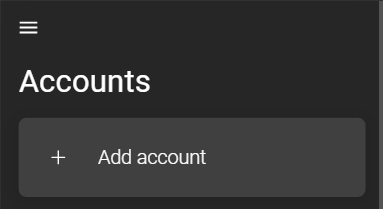
The differences between the IntelliTrend Mobile app for Zabbix and the web app are described in the chapter Account.
Choose whether to log in as a Prisma user or as a Prisma manager. A Prisma manager is a user that does not originate from a Zabbix server but is created within Prisma. Managers are used for administrative tasks such as creating companies, adding Zabbix servers to Prisma, managing and creating roles, media types, and Prisma users.
Select Prisma Manager:

The login form for a Prisma manager requires the address of the Prisma server and user credentials:
If using Prisma Cloud, username and password are provided.
If using Prisma Self-Hosted, credentials of the default account or any other created account can be used. Refer to the install guide for details.
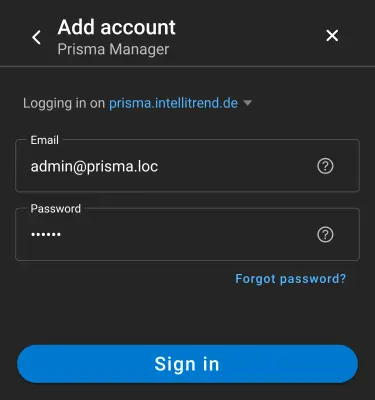
- Prisma Server: URL of the Prisma Server without
https://orhttp://. The prefix is selected via dropdown. - Username: Designated username.
- Password: Designated password.
- API guard token: If using the IntelliTrend API Guard, a token can be provided to add an extra layer of security.
Adding Zabbix servers to Prisma
Adding a server requires the necessary permissions.
Navigate to Administration > Zabbix servers and click the blue plus to open Zabbix server creation dialog.
1. General Zabbix server configuration
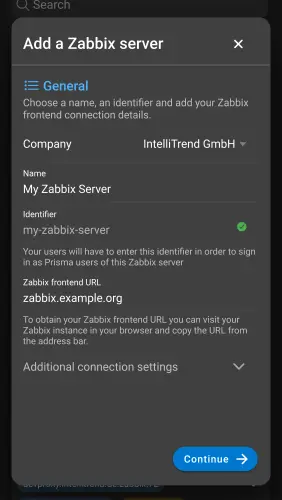
- Company: Company the server belongs to.
- Name: Name of the Zabbix server.
- Identifier: Used as the
Zabbix server identifierwhen adding a Prisma user account. - Zabbix frontend URL: The URL of the Zabbix server’s frontend
- Additional connection settings:
- Security Mode: Select between
Plain,Basic Auth, andAPI Guard. - Trust system certificate authority pool: Toggle to trust the system CA pool.
- Deposit certificate authority: If the CA pool is not trusted, upload the CA certificate.
- Security Mode: Select between
The API Guard is free software from IntelliTrend that acts as an API reverse-proxy/gateway for a Zabbix frontend. It provides public access to the Zabbix API without exposing the entire frontend.
Click Continue to go to the Authentication section:
2. Authentication
Prisma requires a Zabbix super admin user in order to perform various task on the Zabbix server that are required for Prisma to work, such as user and user group management.
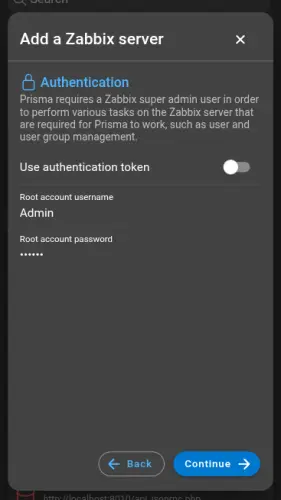
- Use an authentication token: Toggle to use a token instead of username and password.
- Root account username / password: Credentials of the root user.
- Root account token: Token if token-based authentication is selected.
Click Continue to proceed to the Zabbix user selection
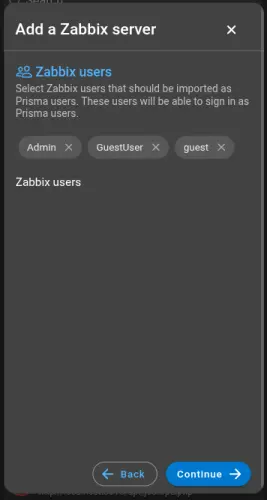
3. Zabbix user selection
Select Zabbix users that should be imported as Prisma users. These users will be able to sign in as Prisma users.
4. Prisma user group creation
This step is only available to users that have Prisma AI or Reporting enabled.
Select Prisma users that should be part of your first Prisma user group. Members of a Prisma user group will be able to use Prisma AI and Prisma Reporting.
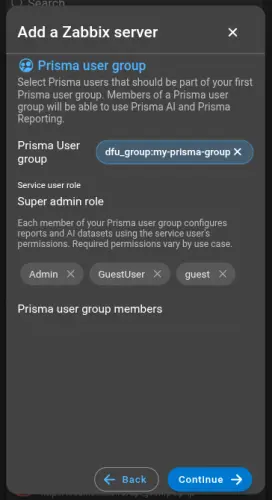
- Prisma User group: The name of your Prisma user group that will be created as a Zabbix user group on your Zabbix server.
- Service user role: The Zabbix role of your service user.
- Prisma user group members: Select your members for this group. These users will be able to create and manage Prisma AI and Prisma Reporting resources for this group.
Each member of your Prisma user group configures reports and AI datasets using the service user’s permissions. Required permissions vary by use case.
5. Summary
Before completing the Zabbix servers creation, a complete summary of your configuration is shown. This summary includes all actions that Prisma will execute on your Zabbix server, like creating a Zabbix user group and assigning users to that group.
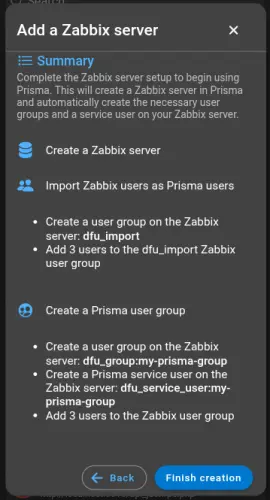
Click Finish creation to complete the process.
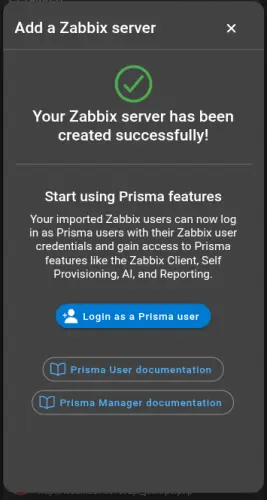
More details can be found in the chapter Zabbix server setup.
3. Importing users
Zabbix users imported into Prisma are called Prisma users and are required to access Prisma in user mode. Features of the user mode are described in the user manual.
To import users, navigate to the newly added Zabbix server and open its configuration page. Scroll to User configuration and click Imported Zabbix users:
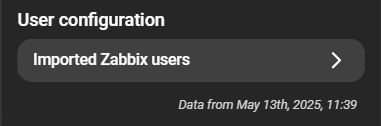
This opens the Zabbix users page listing all imported users. Clicking the cogwheel icon in the bottom right corner opens the import wizard:
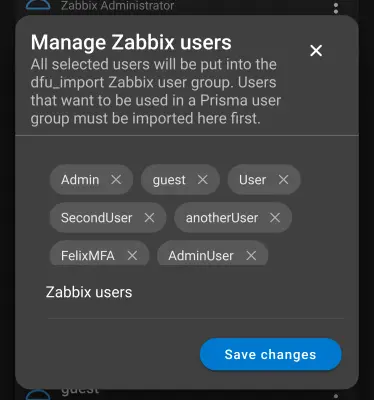
When clicking the Zabbix user field, all users available on the Zabbix server are listed. Select the users to import, end the selection with Done and finish with Save changes. If the dfu_import user group does not exist yet, it is created automatically and the selected users are added.
Further details can be found in the chapter Importing Zabbix users.
4. Assigning user groups
A Prisma user group is a prerequisite for using Reporting and AI. Members of a user group share the permissions of the group’s service user. Actions performed by group members are executed by the service user, and thus the service user’s permissions determine the accessible Zabbix data.
Managing user groups
To add imported users to a group, open the configuration of the Zabbix server and scroll to Prisma user groups:
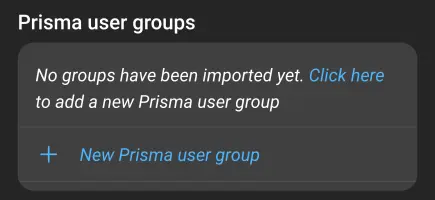
Clicking New Prisma user group opens a form:
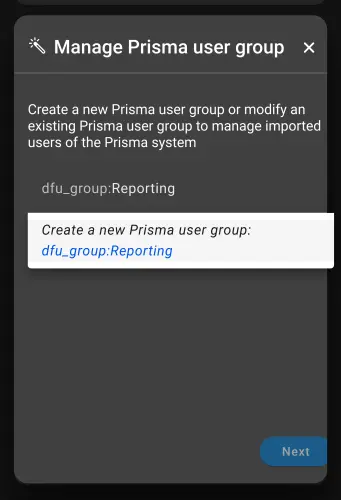
When entering a name, the prefix _dfu_group__ is added automatically. Click Create new Prisma user group: dfu_group:Your_group and then on Next, to open the Create service user page.
Creating service users
Service users are responsible for consistent permissions of Prisma user groups. Actions performed by members of a group are executed on behalf of the group’s service user. Permissions of a user group are therefore determined by the permissions of the service user.
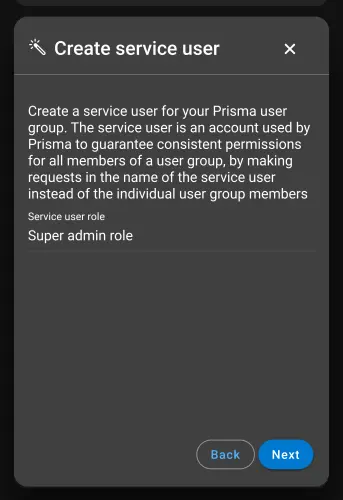
Select an appropriate role for the service user and continue with Next.
Depending on the role, some functions may not be available. For example, the Audit-log widget requires a Super Admin role.
Managing group members
After selecting a role for the service user, imported Zabbix users can be added to the group.
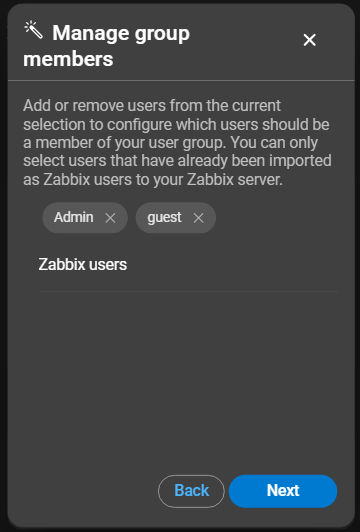
After selecting the users to add to the group, click Next to continue.
Verifying the user group
The last page of the wizard provides an overview of all configurations and the changes that will be applied to the Zabbix server on confirmation. Clicking Apply changes executes these changes and completes the process. Success is indicated by green checkmarks for each configuration step:
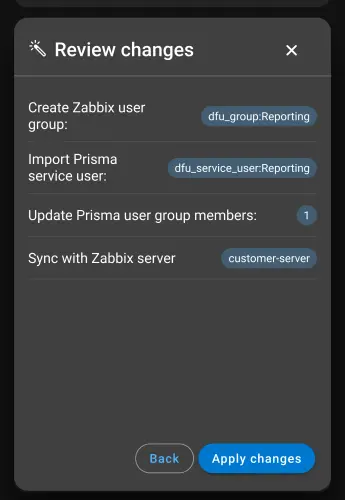
For further details and troubleshooting, refer to the chapter User group wizard.
Start using Prisma user features
After integration of a Zabbix server into Prisma, features like Self Provisioning, Reporting, and AI are available to Prisma users.
For details on getting started as a Prisma user, refer to the Prisma User manual.