Zabbix user groups
This includes dfu_import groups, used to import members into Prisma, and Prisma user groups, used to access the Zabbix server’s data for the Reporting feature. Both can be created with their corresponding wizards in Prisma.
dfu_import groups
Multiple dfu_import groups can exist, for example when multiple LDAP servers are in use. A dfu_import group is a prerequisite for importing Zabbix users into Prisma. Users to be imported must belong to such a group. The import wizard can create the group as well as add members. A group name must start with the prefix dfu_import, ensuring that Prisma correctly identifies the group and its members for import.
Prisma user groups
A Prisma user group is required for users who access the Reporting and AI features. It can be created automatically using Prisma’s user group wizard.
The Prisma user group leverages the service user’s permissions to access data from the Zabbix server and defines the scope for all members of the group. These groups follow a naming convention, beginning with the prefix dfu_group:, followed by the service user’s username without its prefix.
Requirements
For a Zabbix user group to be a valid Prisma user group, the following requirements apply:
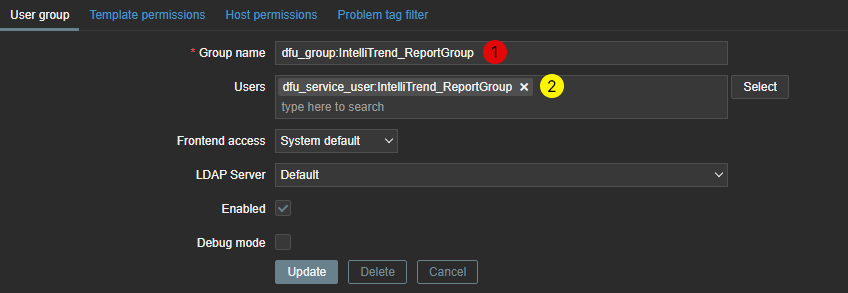
- The service user must have the prefix
dfu_service_user:(1). - The user group must have the prefix
dfu_group:. - The user group’s name (1) and the service user’s name (2) must match, ignoring prefixes.
- The service user (2) must be part of the user group with the same name.
Creating Prisma user groups manually
This step is optional, as the user group wizard can handle the task.
To manually create a user group in Zabbix:
- Navigate to Users > User groups.
- Click Create user group in the top right corner. This opens a dialog with form fields.
- Enter a group name that begins with the prefix
dfu_group:followed by the service user’s name. - Permissions can remain at default.
- If users already exist, they can be added in the Users field.
As reference, use the image in section Prisma user groups.
Synchronizing Prisma and Zabbix
For the user to appear in Prisma, Prisma and the Zabbix server must be synchronized.
Synchronization can run automatically or be triggered manually. Each server has a predefined synchronization interval or synchronizes on startup. The interval can be managed within the server configuration using the CLI key user-sync-schedule. Synchronization at startup can be triggered with the CLI key user-sync-on-start.
Synchronizing manually
To synchronize manually:
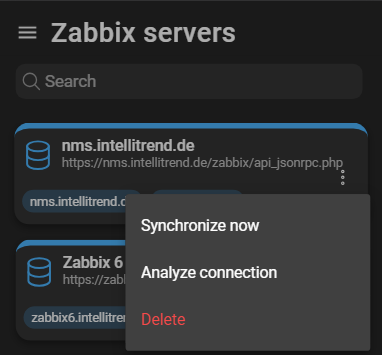
- Navigate to Administration > Zabbix servers.
- Open the context menu of the server to synchronize.
- Click Synchronize now.