Prisma manager
The primary tasks of Prisma managers involve administrative tasks. These include managing Zabbix servers, importing users, configuring companies, user roles, media types, and related entities.
Default manager
For the self-hosted version of Prisma Core, a default manager with full permissions and access to all companies always exists. This default manager cannot be removed nor modified, but the account can be deactivated.
If Prisma Core is acquired as cloud service, the manager login credentials are provided.
Creating Prisma managers
New Prisma managers are created by first navigating to Administration > Users and clicking the blue plus to open a form:
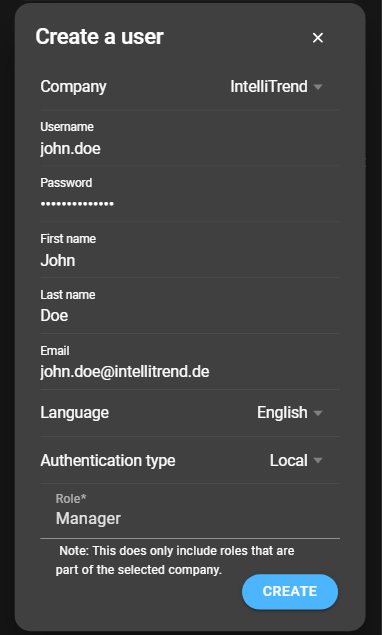
- Company: Company that the new manager will belong to.
- Username: Username for the manager.
- Password: Password for the manager.
- First name: First name of the manager.
- Last name: Last name of the manager.
- Email: Email address of the manager.
- Language: Preferred language of the manager.
- Authentication type: Type of authentication for the manager.
- Role: One of the managing roles, available for the selected company. Defines the permissions of the Prisma manager account.
After the form is filled out, click Save. The user appears in the list.
Configure an existing Prisma manager
The settings for an existing Prisma manager can be accessed through the configuration button. This opens a form where all attributes can be changed except the company:
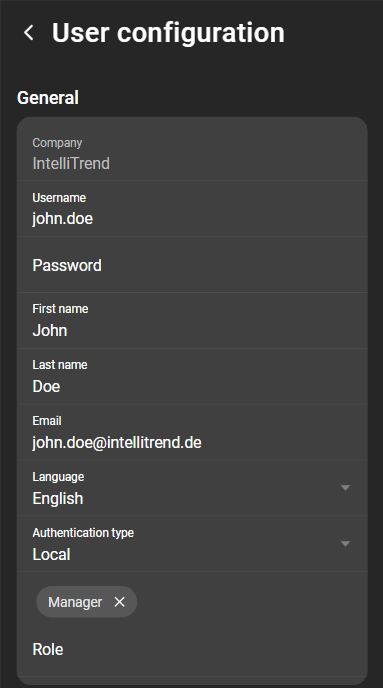
Click Save to apply changes.
Disable or enable a manager
If a manager is disabled, login and impersonation are no longer possible. To disable a manager, navigate to Administration > Managers. This opens the list of all managers:
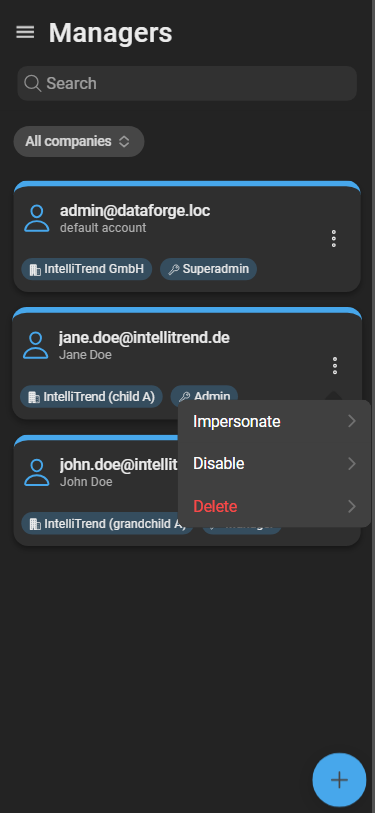
Click the context menu and select Disable. The card of a disabled manager is colored red:
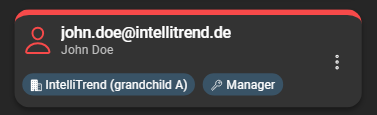
If the manager is already disabled, it can be enabled again by clicking the context menu and selecting Enable.