Modules and quotas
Accessing modules and quotas
Navigate to Administration > Companies while logged in as an admin. The companies page lists all companies, starting with the root company.
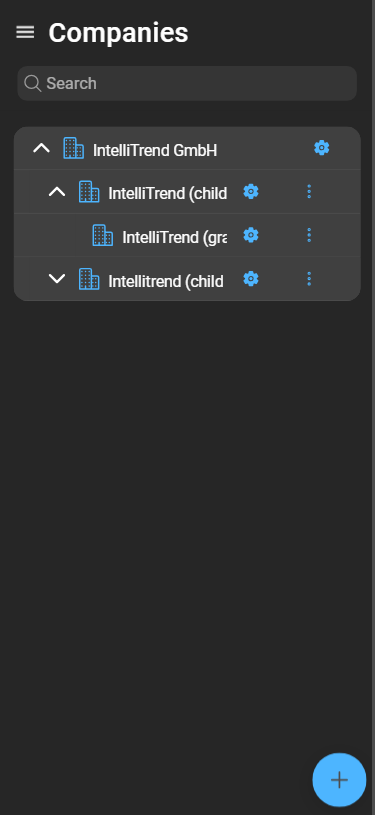
Root company
The root company is the highest reseller company in the hierarchy and cannot be removed. While some aspects can be modified, its type remains fixed. Modules and resource capacity are determined by the acquired license and cannot be changed by the admin.
Modules and quotas of descendant companies
Companies have two key aspects:
- Modules: Define access to specific Prisma functions.
- Resource quotas: Restrict creation and allocation of resources such as companies, users, and reports.
These settings can be managed on the company details page. The admin can adjust modules and quotas for all companies except the root.
Modules
Prisma modules cover four functional areas: Zabbix Client, Reporting, Self Provisioning, and AI. Each can be enabled or disabled individually per company.
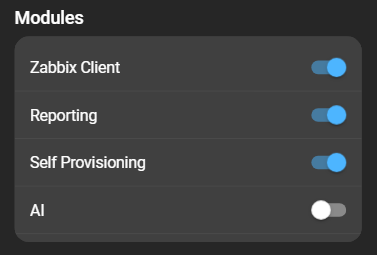
Quotas
Quotas define limits for different elements within Prisma, such as companies, managers, or Zabbix servers. They also restrict module usage.
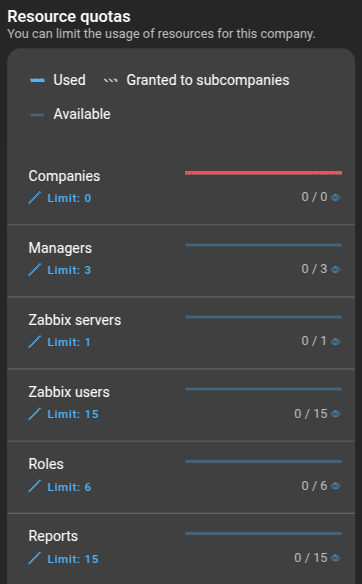
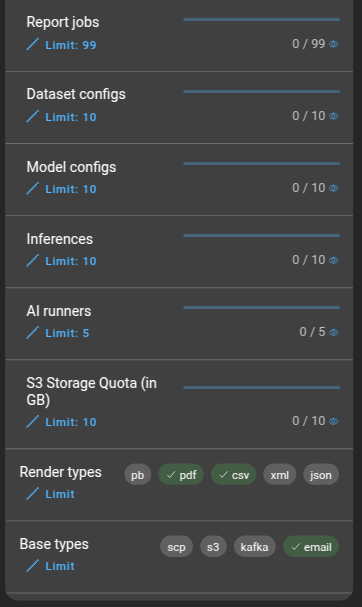
- Companies: Maximum number of companies.
- Prisma managers: Maximum number of managers.
- Zabbix servers: Maximum number of servers.
- Zabbix users: Maximum number of imported users.
- Roles: Maximum number of custom roles.
- Reports: Maximum number of reports.
- Report jobs: Maximum number of rendered reports.
- Dataset configs: Maximum number of dataset configs.
- Model configs: Maximum number of model configs.
- Deployments: Maximum number of deployments.
- AI servers: Maximum number of AI servers.
- S3 Storage Quota: Available S3 storage space.
- Render types: Available render types for report subscriptions.
- Base types: Available base types for media types.
Clicking a quota opens a form:
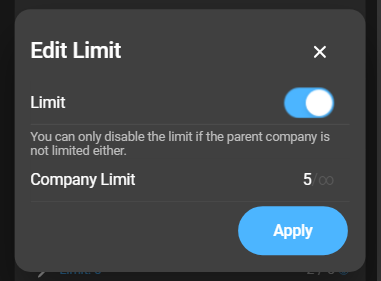
- Limit: Enables or disables the quota. Can only be disabled if the license allows unlimited use.
- Resource-specific limit: Set limits for the selected resource. The first number is the limit for the company and the second number is the limit that can be assigned.
Resource usage indicator
An indicator bar to the right of each resource shows the resource usage:

-
Used resources: Colored by percentage in use:
- Light blue: Up to 60%
- Yellow: More than 60% and up to 80%
- Red: More than 80%
-
Granted to descendants: Gray hatched.
-
Remaining resources: Dark blue.
Hold the eye icon to display exact values.
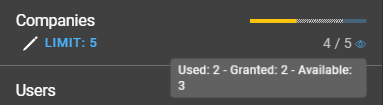
The numeric values beneath the indicator bar display:
- Total resources in use.
- Total limit.